Hugo + GitHub搭建个人博客
首先安装下载 Hugo和Git,并且注册一个GitHub账号,Hugo一定要选择Extended版本。
打开终端,按下win+R,输入cmd,回车进入终端,输入以下命令,验证一下安装是否成功了吗?
git --version
hugo version
如果能看到版本号,说明安装成功了
创建本地博客项目
1、打开终端,cd到你希望存放博客项目的文件夹。
2、运行以下命令创建一个新的Hugo站点。我们将博客项目命名为 my-blog
hugo new site my-blog
3、进入刚刚创建的目录并初始化Git仓库
cd my-blog
git init
添加主题
找到Hugo官网,选择主题,跳转到Github,点tag,下载最新版zip源码包
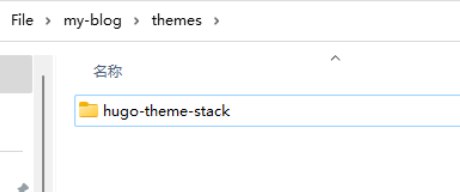
解压缩到themes文件夹,并将名字中的版本号去掉
配置主题
在 my-blog 目录下,执行以下命令(仅针对本项目,功能是提取作者的演示案例作为初始项目,并清除作者的演示案例)
强制删除当前目录的 content 文件夹(若存在)
Remove-Item -Path "content" -Recurse -Force -ErrorAction SilentlyContinue
将主题示例的 content 复制到当前目录(xcopy在PowerShell中可直接使用)
xcopy "themes\hugo-theme-stack\exampleSite\content" "content" /E /I /H /Y
删除 exampleSite 文件夹
Remove-Item -Path "themes\hugo-theme-stack\exampleSite" -Recurse -Force -ErrorAction SilentlyContinue
删除 rich-content 文件夹
Remove-Item -Path "content/post/rich-content" -Recurse -Force -ErrorAction SilentlyContinue
删除hugo.toml,并创建hugo.yaml (进入相应文件夹中删除创建即可)
将下面模板代码完整复制到config.yaml文件中,根据注释修改你的信息
  1
  2
  3
  4
  5
  6
  7
  8
  9
 10
 11
 12
 13
 14
 15
 16
 17
 18
 19
 20
 21
 22
 23
 24
 25
 26
 27
 28
 29
 30
 31
 32
 33
 34
 35
 36
 37
 38
 39
 40
 41
 42
 43
 44
 45
 46
 47
 48
 49
 50
 51
 52
 53
 54
 55
 56
 57
 58
 59
 60
 61
 62
 63
 64
 65
 66
 67
 68
 69
 70
 71
 72
 73
 74
 75
 76
 77
 78
 79
 80
 81
 82
 83
 84
 85
 86
 87
 88
 89
 90
 91
 92
 93
 94
 95
 96
 97
 98
 99
100
101
102
103
104
105
106
107
108
109
110
111
112
113
114
115
116
117
118
119
120
121
122
123
124
125
126
127
128
129
130
131
132
133
134
135
136
137
138
139
140
141
142
143
144
145
146
147
148
149
150
151
152
153
154
155
156
157
158
159
160
161
162
163
164
165
166
167
168
169
170
171
172
173
174
175
176
177
178
179
180
181
182
183
184
185
186
187
188
189
190
191
192
193
194
195
196
197
198
199
200
201
202
203
204
| #站点基础配置
baseurl: https://example.com/ # 网站根URL
languageCode: en-us # 默认语言代码
theme: hugo-theme-stack # 使用的主题名称
title: Example Site # 网站标题
copyright: Example Person # 版权信息
#国际化配置
#支持的语言: ar, bn, ca, de, el, en, es, fr, hu, id, it, ja, ko, nl, pt-br, th, uk, zh-cn, zh-hk, zh-tw
DefaultContentLanguage: en # 默认内容语言
#如果默认语言是中文/日文/韩文,需设置为true
#这将使.Summary和.WordCount对CJK语言正常工作
hasCJKLanguage: false
#多语言详细配置
languages:
en:
languageName: English # 语言显示名称
title: Example Site # 该语言下的网站标题
weight: 1 # 权重(排序用)
params:
sidebar:
subtitle: Example description # 侧边栏副标题
zh-cn:
languageName: 中文
title: 演示站点
weight: 2
params:
sidebar:
subtitle: 演示说明
ar:
languageName: عربي
languagedirection: rtl # 文本方向(阿拉伯语从右到左)
title: موقع تجريبي
weight: 3
params:
sidebar:
subtitle: وصف تجريبي
#第三方服务配置
services:
# Disqus评论系统(使用前需修改为你的shortname)
disqus:
shortname: "hugo-theme-stack"
# Google Analytics跟踪ID
googleAnalytics:
id: # 填入你的GA跟踪ID
#分页设置
pagination:
pagerSize: 3 # 分页器显示页码数量
#永久链接格式
permalinks:
post: /p/:slug/ # 文章URL格式
page: /:slug/ # 页面URL格式
#主题参数配置
params:
mainSections:
- post # 主要内容区域
featuredImageField: image # 特色图片字段名
rssFullContent: true # RSS是否包含全文
favicon: # 网站图标路径,如:/favicon.ico
# 页脚设置
footer:
since: 2020 # 起始年份
customText: # 自定义文本
# 日期格式
dateFormat:
published: Jan 02, 2006 # 发布日期格式
lastUpdated: Jan 02, 2006 15:04 MST # 最后更新日期格式
# 侧边栏设置
sidebar:
emoji: 🍥 # 表情图标
subtitle: Lorem ipsum dolor sit amet, consectetur adipiscing elit. # 副标题
avatar:
enabled: true # 是否显示头像
local: true # 是否使用本地图片
src: img/avatar.png # 头像路径
# 文章设置
article:
math: false # 是否支持数学公式
toc: true # 是否显示目录
readingTime: true # 是否显示阅读时间
license:
enabled: true # 是否显示版权信息
default: Licensed under CC BY-NC-SA 4.0 # 默认许可证
# 评论系统配置
comments:
enabled: true # 启用评论
provider: disqus # 评论提供商
# 各评论系统的具体配置
disqusjs: {...} # DisqusJS配置
utterances: {...} # Utterances配置(GitHub-based)
beaudar: {...} # Beaudar配置
remark42: {...} # Remark42配置
vssue: {...} # Vssue配置
waline: {...} # Waline配置
twikoo: {...} # Twikoo配置
cactus: {...} # Cactus Chat配置
giscus: {...} # Giscus配置(GitHub Discussions)
gitalk: {...} # Gitalk配置
cusdis: {...} # Cusdis配置
# 小工具配置
widgets:
homepage: # 首页小工具
- type: search # 搜索框
- type: archives # 文章归档
params:
limit: 5 # 显示数量
- type: categories # 分类
params:
limit: 10
- type: tag-cloud # 标签云
params:
limit: 10
page:
- type: toc # 页面目录
# OpenGraph设置(社交媒体分享)
opengraph:
twitter:
site: # Twitter用户名
card: summary_large_image # 卡片类型:summary或summary_large_image
# 默认图片设置
defaultImage:
opengraph:
enabled: false # 是否启用
local: false # 是否使用本地图片
src: # 图片路径
# 颜色方案
colorScheme:
toggle: true # 是否显示切换按钮
default: auto # 默认模式:auto, light, dark
# 图片处理
imageProcessing:
cover:
enabled: true # 处理封面图片
content:
enabled: true # 处理内容图片
#自定义菜单配置
menu:
main: [] # 主导航菜单
social: # 社交链接菜单
- identifier: github
name: GitHub
url: https://github.com/CaiJimmy/hugo-theme-stack
params:
icon: brand-github # 图标名称
#相关文章设置
related:
includeNewer: true # 是否包含较新文章
threshold: 60 # 相关度阈值
toLower: false # 是否忽略大小写
indices:
- name: tags # 使用标签作为关联依据
weight: 100 # 权重
- name: categories # 使用分类作为关联依据
weight: 200
#Markdown渲染设置
markup:
goldmark:
extensions:
passthrough:
enable: true # 启用原始HTML通过
delimiters:
block: # 块级分隔符
- - \[
- \]
- - $$
- $$
inline: # 行内分隔符
- - \(
- \)
renderer:
unsafe: true # 允许不安全HTML(直接渲染HTML内容)
tableOfContents:
endLevel: 4 # 目录结束级别
ordered: true # 是否有序
startLevel: 2 # 目录开始级别
highlight:
noClasses: false # 是否使用内联样式
codeFences: true # 启用代码围栏
guessSyntax: true # 自动猜测语法
lineNoStart: 1 # 行号起始值
lineNos: true # 显示行号
lineNumbersInTable: true # 在表格中显示行号
tabWidth: 4 # 制表符宽度
|
重点: 务必修改 baseURL、title、avatar.src 和 social 部分的内容为你自己的信息
本地预览
在发布到互联网前,先在本地预览效果。
在 my-blog 目录的 PowerShell 中执行:
hugo server -D
终端会提示一个地址,通常是 http://localhost:1313/。在浏览器中打开它,你应该能看到你的博客了。
托管代码到 GitHub 并设置自动化部署
创建并设置源代码仓库
·登录 GitHub,创建一个新仓库用于存放博客的源代码。
·Repository name: <你的用户名>.github.io (这是获取顶级访问域名的关键,例如用户名 john 则仓库名为 john.github.io)。
·将仓库 visibility 设为 Public (私有仓库需要付费账户才能使用 Pages 功能)。
·不要勾选 “Initialize this repository with a README”。
·创建完成后,复制仓库的 HTTPS 地址(格式为 https://github.com/<你的用户名>/<你的用户名>.github.io.git)。
推送本地代码到仓库
推送本地代码到仓库
在本地终端 (如 PowerShell) 中,进入你的 Hugo 站点根目录 (例如 my-blog),执行以下命令:
#关联远程仓库(地址替换为刚复制的地址)
git remote add origin https://github.com/<你的用户名>/<你的用户名>.github.io.git
#添加所有文件到暂存区并提交
git add .
git commit -m “Initial commit with Hugo site and Stack theme”
#将本地 main 分支推送到 GitHub 并设为上游分支
git branch -M main
git push -u origin main
配置自动化部署 (GitHub Actions)
·设置Github Pages
·点击Settings
·点击左侧Pages
·将Buile and depolyment由Deploy from branch 改为 GitHub Actions
·在本地站点根目录下,创建目录结构:.github/workflows/,并在 workflows 目录中新建文件 deploy.yml。
·用文本编辑器打开 deploy.yml,粘贴以下工作流配置(该配置使用官方推荐 Actions,支持自动构建、发布):
 1
 2
 3
 4
 5
 6
 7
 8
 9
10
11
12
13
14
15
16
17
18
19
20
21
22
23
24
25
26
27
28
29
30
31
32
33
34
35
36
37
38
39
40
41
42
43
44
45
46
47
48
49
50
| name: Deploy Hugo Site to Pages
on:
push:
branches: ["main"] # 代码推送至 main 分支时触发
workflow_dispatch: # 支持手动触发
permissions:
contents: read
pages: write
id-token: write
concurrency:
group: "pages"
cancel-in-progress: false
jobs:
build:
runs-on: ubuntu-latest
steps:
- name: Checkout code
uses: actions/checkout@v4
with:
submodules: recursive # 自动拉取主题子模块
fetch-depth: 0
- name: Setup Hugo
uses: peaceiris/actions-hugo@v2
with:
hugo-version: 'latest'
# extended: true # 若主题需扩展版,取消注释
- name: Build with Hugo
run: hugo --minify --gc # 生成优化后的静态文件
- name: Upload artifact
uses: actions/upload-pages-artifact@v3
with:
path: ./public # 上传生成的站点文件
deploy:
environment:
name: github-pages
url: ${{ steps.deployment.outputs.page_url }}
runs-on: ubuntu-latest
needs: build
steps:
- name: Deploy to GitHub Pages
id: deployment
uses: actions/deploy-pages@v4
|
查看部署状态和访问博客
推送完成后,在浏览器中访问你的 GitHub 仓库:https://github.com/<你的用户名>/<你的用户名>.github.io。
点击顶部 Actions 标签页,查看名为 “Deploy Hugo Site to Pages” 的工作流运行状态。等待运行完成(出现绿色对勾 ✅)。
部署成功后,进入 Settings → Pages,页面顶部会显示你的博客访问地址:https://<你的用户名>.github.io。
点击该链接即可访问已自动发布的博客。
发布上线过程:
进入my-blog根目录执行
hugo --cleanDestinationDir #清理旧文件并重新 生成
hugo server 预览一下
git add .
git commit -m "Publish: XXX"
git push
本地仓库推送新账号
删除本地仓库文件.git
初始化全新的Git仓库
git init
添加所有文件
git add .
提交初始版本
git commit -m “初始化博客仓库”
步骤 1:生成并添加 SSH 密钥到新账号
打开终端,生成 SSH 密钥(按提示操作,无需设置密码):
1
| ssh-keygen -t ed25519 -C "oppwin168@gmail.com"
|
找到生成的公钥文件(默认路径):
Windows:C:\Users\你的用户名.ssh\id_ed25519.pub
用记事本打开,复制全部内容
登录 JustWin33 的 GitHub 账号:
进入 Settings → SSH and GPG keys → New SSH key
粘贴公钥内容,随意填写一个标题(如 my-blog-pc),点击添加
步骤 2:修改本地仓库的远程链接为 SSH 形式
先删除现有 origin 关联
git remote remove origin
添加 SSH 形式的远程仓库链接
git remote add origin git@github.com:JustWin33/JustWin33.github.io.git
步骤 3:测试 SSH 连接并推送
测试是否能连接到 GitHub
ssh -T git@github.com
如果成功,会显示 Hi JustWin33! You’ve successfully authenticated…
然后推送代码:
git push –set-upstream origin main
git submodule add -b main git@github.com:JustWin33/JustWin33.github.io.git main
注意是:main分支
进入my-blog根目录执行
hugo –cleanDestinationDir #清理旧文件并重新 生成
hugo server 预览一下
git add .
git commit -m “Publish: XXX”
git push